


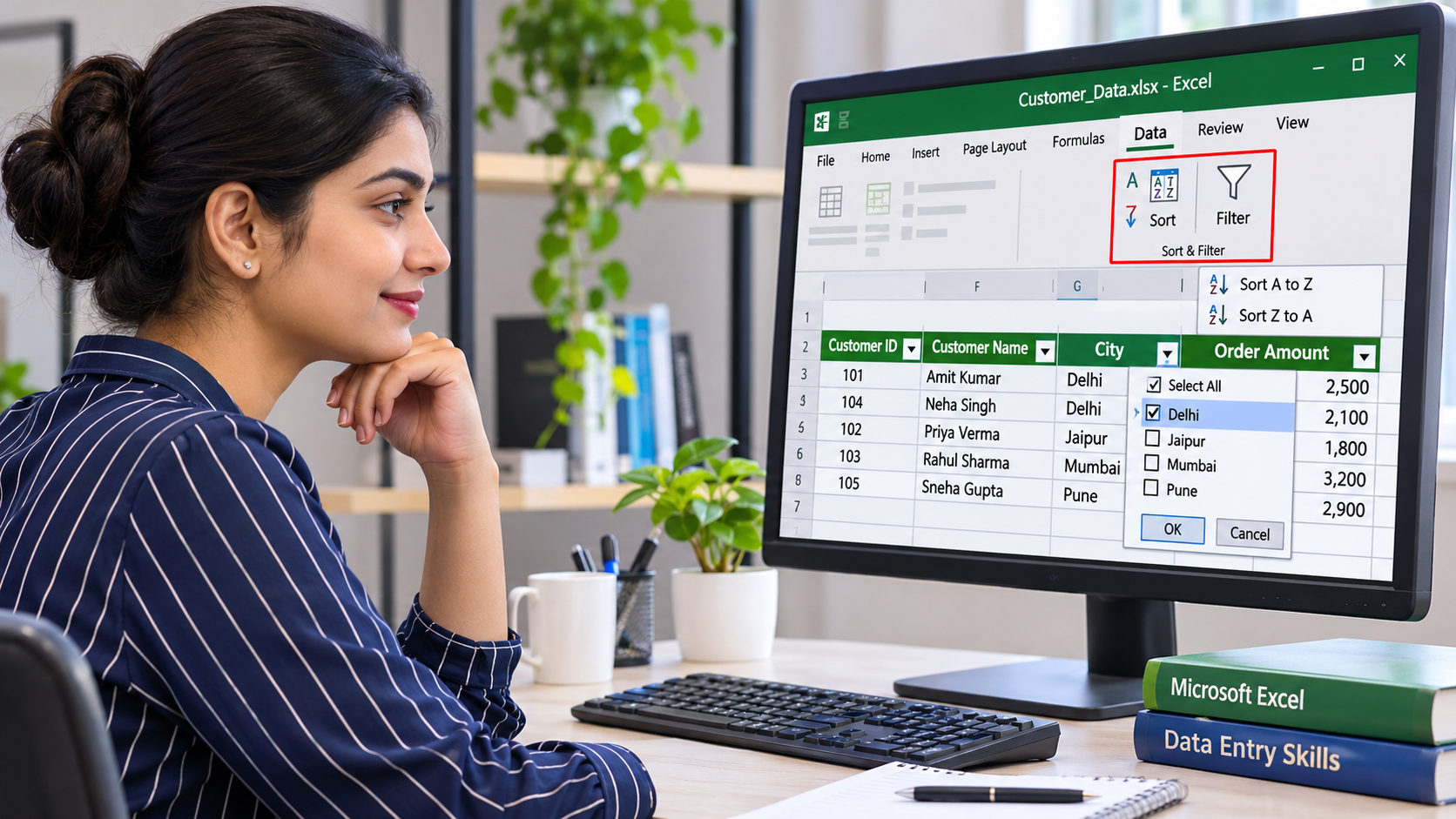
Sorting and Filtering: Essential Excel Skills for Data Entry
Working with data in Microsoft Excel is not just about entering information into cells. A large part of data entry work involves organising records, finding specific information and checking details without losing track of the original data. This is where sorting and filtering become particularly useful.
Imagine entering hundreds of customer records into a spreadsheet. A manager asks you to find all customers from Delhi, arrange their names alphabetically or identify orders placed during a particular month. Searching through every row manually would take time and increase the chance of mistakes. With Excel’s sorting and filtering features, these tasks become much easier.
For anyone learning Excel for data entry jobs, these are practical skills worth understanding early. They are useful for office assistants, data entry operators, administrative staff, virtual assistants and people handling spreadsheets as part of remote work.
What Is Sorting in Microsoft Excel?
Sorting means arranging information in a particular order. Excel allows you to organise data alphabetically, numerically or according to dates.
For example, if a spreadsheet contains customer names entered in random order, you can sort the names from A to Z. Similarly, you can arrange sales figures from the smallest amount to the largest or place the oldest dates before the newest ones.
Sorting does not remove information. It changes the order in which records appear in the worksheet.
Common Types of Sorting in Excel
- A to Z: Arranges text alphabetically, such as customer names or city names.
- Z to A: Arranges text in reverse alphabetical order.
- Smallest to Largest: Organises numerical values from low to high.
- Largest to Smallest: Places the highest numerical values first.
- Oldest to Newest: Arranges dates chronologically.
- Newest to Oldest: Displays the most recent dates first.
You can also sort information using multiple columns, cell colours, font colours and custom lists. These options are helpful when working with more detailed spreadsheets.
How to Sort Data in Excel Step by Step
You do not need advanced Excel knowledge to sort a basic list. Follow these steps using a simple customer database.
Step 1: Open Your Excel Spreadsheet
Open the workbook containing the information you want to organise. Before sorting, check that the data is arranged in a proper table with separate columns.
For example, a customer database might contain the following headings:
| Customer ID | Customer Name | City | Order Amount |
|---|---|---|---|
| 101 | Rahul Sharma | Delhi | 2500 |
| 102 | Priya Verma | Jaipur | 1800 |
| 103 | Amit Kumar | Mumbai | 3200 |
| 104 | Neha Singh | Delhi | 2100 |
Step 2: Select a Cell in the Column
Click any cell within the column you want to sort. For example, if you want to arrange customer names alphabetically, select a cell under the Customer Name heading.
Make sure the records are connected properly and that there are no completely blank rows separating parts of the dataset.
Step 3: Open the Data Tab
Go to the Data tab in the Excel ribbon. Look for the Sort & Filter section, where you will find the sorting options.
Step 4: Choose the Sorting Order
Select the appropriate option:
- Choose Sort A to Z to arrange names alphabetically.
- Choose Sort Z to A to arrange names in reverse order.
For numerical information, Excel provides smallest-to-largest and largest-to-smallest options.
Step 5: Check the Results
After sorting, check whether the complete records have remained together. The customer name, city, ID and order amount must stay on the same row.
If Excel displays a warning asking whether to expand the selection, choose Expand the selection when you intend to sort the complete dataset. Sorting only one column independently can mix up customer details and create incorrect records.
What Is Filtering in Excel?
Filtering is a feature that allows you to display only the records matching particular conditions. Instead of rearranging the entire spreadsheet, Excel temporarily hides rows that do not meet your selected criteria.
Suppose you have 500 customer records from different cities. You only need to work with customers from Delhi. Rather than searching through all 500 rows, you can apply a filter to the City column and display only Delhi records.
The original information remains in the worksheet. You can clear the filter whenever you want to display all records again.
Common Filtering Options
- Text Filters: Find records containing specific words, letters or text conditions.
- Number Filters: Display values greater than, less than or equal to a selected number.
- Date Filters: Find records from a particular date, month, year or date range.
- Colour Filters: Display cells with a particular background or font colour.
- Custom Filters: Apply conditions such as contains, begins with, greater than or between.
How to Filter Data in Excel Step by Step
Filtering is straightforward once you understand where the options are located.
Step 1: Select Your Data
Open your spreadsheet and click inside the dataset. Make sure each column has a clear heading, such as Name, City, Date or Payment Status.
Step 2: Enable the Filter Option
Go to the Data tab and click Filter. Small dropdown arrows will appear beside the column headings.
If your information is formatted as an Excel Table, filter controls are generally added automatically.
Step 3: Open a Column’s Filter Menu
Click the dropdown arrow beside the column you want to filter. For example, select the arrow beside the City heading.
Excel will display the available values in that column, along with selection boxes.
Step 4: Select the Required Information
Uncheck Select All and choose only the values you want to display. If you need customer records from Delhi, select Delhi and leave the other cities unchecked.
Click OK. Excel will hide the rows that do not match your selection.
Step 5: Clear the Filter When Finished
To display all records again, open the filter dropdown and select Clear Filter. You can also use the Filter button on the Data tab to turn off filtering for the selected range.
Remember that clearing a filter and deleting information are two different actions. Clearing a filter simply makes the hidden records visible again.
Difference Between Sorting and Filtering in Excel
Although both features help organise spreadsheet information, they perform different tasks.
| Feature | Sorting | Filtering |
|---|---|---|
| Main purpose | Arranges information in an order | Displays selected records |
| Data appearance | Changes the order of rows | Temporarily hides unmatched rows |
| Example | Names arranged from A to Z | Only Delhi customers displayed |
| Multiple conditions | Can sort using multiple columns | Can apply filters across multiple columns |
| Original records | Records remain but their order changes | Unmatched records remain hidden |
In simple terms, sorting helps you arrange information, while filtering helps you find the specific information you need.
Practical Examples of Sorting and Filtering in Data Entry Jobs
These features are not just theoretical Excel functions. They are used in everyday spreadsheet tasks across different industries.
1. Organising Customer Information
Customer databases often contain hundreds or thousands of names, phone numbers, email addresses and locations.
A data entry operator may need to arrange customer names alphabetically or filter records according to their city. This makes it easier to locate customer details and maintain organised records.
2. Managing Sales Records
Businesses regularly maintain spreadsheets containing product names, order dates, quantities and sales amounts.
Sorting sales figures from highest to lowest can help employees identify larger transactions. Filtering can display orders from a particular month or show only transactions above a specified amount.
3. Updating Employee Records
Human resources departments maintain employee information, including names, departments, joining dates and job titles.
Sorting employees by department or joining date makes records easier to review. Filtering can help staff find employees belonging to a particular department without browsing the entire worksheet.
4. Tracking Product Inventory
Retailers and online sellers use Excel to maintain product lists, stock quantities, prices and product categories.
For example, filtering can display products with low stock levels, while sorting can arrange items according to price or quantity.
5. Checking Payment Records
Payment spreadsheets may contain customer names, invoice numbers, transaction dates and payment statuses.
You can filter the Payment Status column to display only pending payments. Sorting by invoice date can also help arrange older records before newer ones.
Using Multiple Columns for Sorting and Filtering
As your Excel skills improve, you will sometimes need to organise records using more than one condition.
Sorting by Multiple Columns
Imagine an employee spreadsheet containing Department, Employee Name and Joining Date columns.
You may want to arrange employees by department first and then alphabetically by name within each department.
To do this:
- Select a cell within your dataset.
- Open the Data tab and click Sort.
- Choose Department under the Sort by option.
- Set the required sorting order.
- Click Add Level.
- Choose Employee Name under Then by.
- Set the second sorting order and click OK.
Excel will organise the information according to both conditions. You can add further sorting levels when required.
Filtering by Multiple Conditions
You can also apply filters to multiple columns at the same time.
For example, suppose you want to find orders from Delhi that have a Pending payment status. Apply a filter to the City column and select Delhi. Then filter the Payment Status column and select Pending.
Excel will display records that meet both selected conditions.
Common Excel Sorting and Filtering Mistakes to Avoid
Beginners sometimes make small mistakes that can affect the accuracy of an entire spreadsheet. Paying attention to these issues is particularly important in professional data entry work.
1. Sorting Only One Column
This is one of the most serious mistakes. If you sort customer names without including their corresponding phone numbers, addresses and other details, the records may no longer match.
Always check that the entire dataset is included in the sorting operation.
2. Using Inconsistent Data Formats
Excel may not sort numbers or dates correctly if some values are stored as text. For example, a date entered as text may not follow the expected chronological order.
Keep similar information in a consistent format throughout each column.
3. Leaving Blank Rows in the Dataset
Blank rows can make it harder for Excel to recognise the complete data range. They may also cause problems when applying sorting or filtering.
Keep the main dataset continuous wherever possible.
4. Forgetting That a Filter Is Active
Sometimes users assume that records are missing when they are simply hidden by an active filter.
Check the filter icons in column headings before assuming that information has been deleted.
5. Not Checking the Results
Never assume that a sorting or filtering operation has worked correctly without checking the output.
Review a few records, confirm that the right information is displayed and make sure the related details remain together.
6. Working Without a Backup
Before making significant changes to an important spreadsheet, save a separate copy. This is particularly useful when handling client databases, financial records or large customer lists.
Tips for Improving Your Excel Skills for Data Entry Work
If you are learning Excel to apply for entry-level data entry positions, regular practice is more useful than simply memorising the names of different functions.
- Practise with sample datasets: Create spreadsheets containing customer details, employee records or product information.
- Learn basic Excel functions: Become familiar with SUM, COUNT, COUNTA, AVERAGE and basic cell formatting.
- Understand Excel Tables: Learn how to convert a normal data range into a structured table.
- Check data accuracy: Develop the habit of reviewing records after sorting, filtering or editing.
- Learn keyboard shortcuts: Practise useful shortcuts to make routine spreadsheet work faster.
- Work with larger datasets: Gradually move from 20 or 30 rows to a few hundred records.
- Keep practising real tasks: Try organising orders, finding customer records and identifying pending payments.
You can also explore more data entry job resources and learn how Excel skills fit into different entry-level opportunities.
How Sorting and Filtering Skills Can Help You Find Data Entry Jobs
Many administrative and data entry responsibilities involve maintaining accurate records rather than simply typing information. Employers may expect candidates to enter, update, organise and retrieve spreadsheet data.
Knowing how to sort and filter information gives you a useful foundation for these tasks. It can also help you feel more confident when completing basic Excel assessments during recruitment.
If you are starting without professional experience, consider practising with sample datasets and creating a small collection of spreadsheet exercises. You can use these examples to demonstrate your practical knowledge when discussing your skills in an interview.
Beginners can also explore data entry opportunities for beginners, jobs that do not require previous experience and career skills and certifications.
Remember that learning Excel does not guarantee employment. Your typing accuracy, attention to detail, communication skills and ability to follow instructions also matter.
Final Thoughts
Sorting and filtering are two basic Excel skills that can make everyday data entry tasks much easier. They help you organise information, locate specific records and work with larger spreadsheets more efficiently.
If you are preparing for your first data entry job or improving your existing computer skills, spend some time practising these features with different types of information. Start with a small spreadsheet, learn how each option works and gradually move on to more complicated datasets.
Being comfortable with sorting and filtering will give you a practical foundation for learning more advanced Excel features and handling routine spreadsheet responsibilities with greater confidence.